Documentation
Everything you need to get the most out of Yeet Prompt.
Getting Started
System Requirements
- Windows 10 or later (64-bit)
- A working microphone
- Internet connection (for cloud transcription mode)
- ~100 MB disk space
Installation
- Purchase & download — After purchasing, you'll get a download link for the installer.
- Run the installer — Double-click the
.exefile and follow the prompts. Windows SmartScreen may show a warning since the app isn't code-signed yet — click "More info" → "Run anyway". - Launch Yeet Prompt — The app starts in your system tray (bottom-right of your taskbar).
First-Run Wizard
The first time you launch Yeet Prompt, a setup wizard walks you through the essentials:
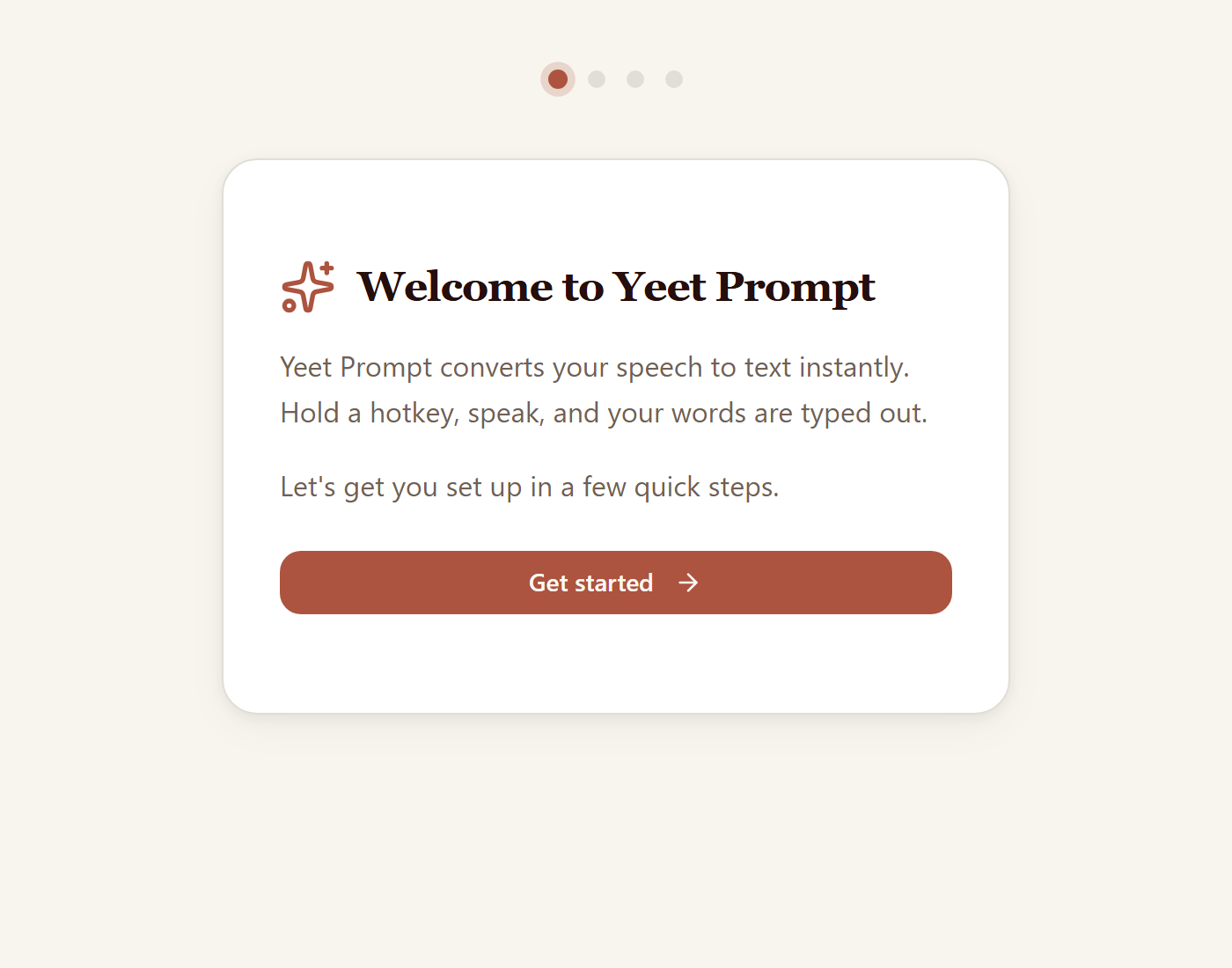
- Microphone access — Grant permission for Yeet Prompt to use your mic.
- Groq API key — Paste your free API key from console.groq.com. This powers the cloud transcription.
- Test recording — Do a quick test to make sure everything works.
Basic Usage
The Core Workflow
Yeet Prompt uses a simple hold-to-record pattern:
- Hold your hotkey (default: Right Ctrl) — recording starts
- Speak — say what you want transcribed
- Release the hotkey — recording stops, transcription begins
- Text appears — automatically pasted into your active application
Overlay Feedback
While recording, a small animated overlay appears near your cursor to confirm that Yeet Prompt is listening:
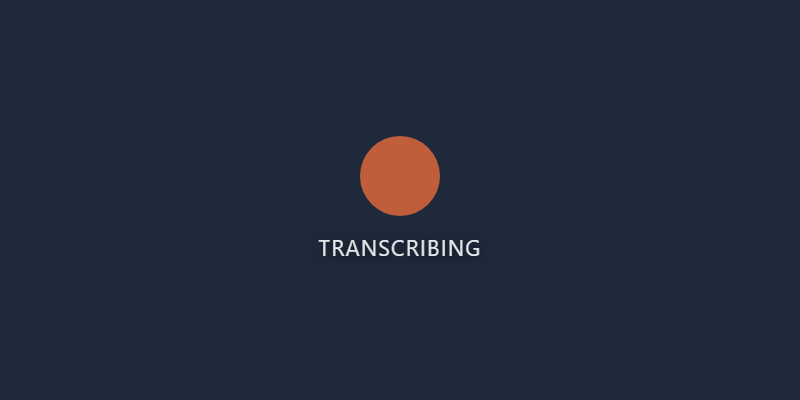
The overlay shows different states: idle, recording (animated), and processing. You can customize the animation style, color, and position in settings.
Paste Behavior
After transcription, Yeet Prompt pastes the text using one of two methods:
- Keyboard simulation (default) — Simulates Ctrl+V to paste into your active app. Your clipboard is temporarily used and then restored.
- Clipboard only — Copies the text to your clipboard without pasting. You paste manually when ready.
Settings
Access settings from the system tray icon → "Settings", or use the keyboard shortcut. Here's a full reference of every option.
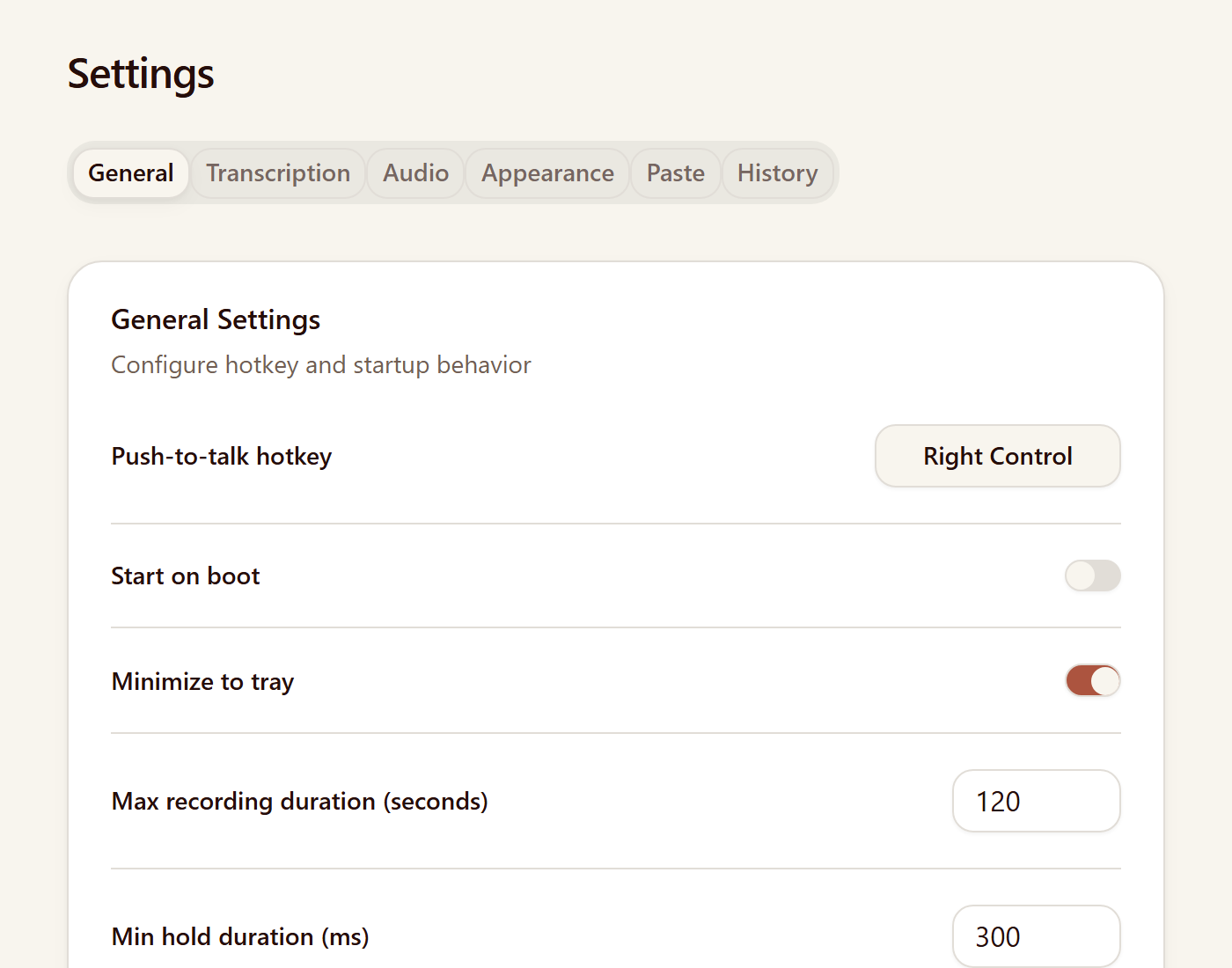
General
| Setting | Description | Default |
|---|---|---|
| Hotkey | The key to hold for recording. Click to reassign. | Right Ctrl |
| Groq API Key | Your personal Groq API key for cloud transcription. | — |
| Start on Boot | Launch Yeet Prompt when Windows starts. | Off |
| Minimize to Tray | Keep running in system tray when closed. | On |
| Max Recording Duration | Automatically stop recording after this many seconds. | 120s |
| Min Recording Duration | Ignore recordings shorter than this to prevent accidental triggers. | 0.5s |
| Paste Method | How text is delivered: keyboard simulation or clipboard only. | Keyboard |
| Clipboard Restore Delay | How long to wait before restoring your original clipboard content (ms). | 500ms |
| Backend Mode | Transcription engine: Auto, Cloud Only, or Local Only. | Auto |
| Language | Language hint for transcription (e.g., English, Spanish, German). | English |
Audio
| Setting | Description | Default |
|---|---|---|
| Input Device | Which microphone to use for recording. | System default |
| Tone Volume | Volume of start/stop audio cues (0–100%). | 50% |
| Start Sound | Sound played when recording begins. Choose built-in, browse for a file, or record a custom sound. | Default tone |
| Stop Sound | Sound played when recording ends. | Default tone |
Appearance
| Setting | Description | Default |
|---|---|---|
| Theme | Dark or light mode for the overlay and windows. | Light |
| Animation Style | Recording overlay animation: Pulse, Bars, Ripple, Waveform, or Talking Photo. | Pulse |
| Animation Color | Color of the recording animation. | Terracotta |
| Overlay Position | Where the overlay appears: 9 screen presets or custom X/Y coordinates. | Near cursor |
| Hide Overlay | Disable the visual overlay entirely. | Off |
| Avatar | Custom image for the Talking Photo animation style. | — |
Transcription Backends
Yeet Prompt supports two transcription engines, and can automatically switch between them.
Cloud — Groq Whisper
The default backend sends your audio to the Groq API using the whisper-large-v3-turbo model.
- Extremely fast (typically under 2 seconds)
- High accuracy across 10+ languages
- Requires an internet connection
- Requires a free Groq API key (generous free tier)
- Audio is processed in real-time and not stored by Groq
Local — whisper.cpp
For fully offline transcription, Yeet Prompt bundles whisper.cpp, a C++ port of OpenAI's Whisper model.
- Completely offline — no data leaves your computer
- Uses the
ggml-base.enmodel (~140 MB) - Slower than cloud (5–15 seconds depending on hardware)
- English-only with the default model
- Requires the whisper.cpp binary and model file in the
assets/whisper/directory
Auto Mode
When the backend is set to Auto (the default), Yeet Prompt tries cloud transcription first. If it fails (no internet, rate limit, invalid key), it automatically falls back to local whisper.cpp — so you always get a result.
main.exe and ggml-base.en.bin in the app's assets/whisper/ folder.History
Every transcription is automatically saved to your local history database. Access it from the system tray → "History".
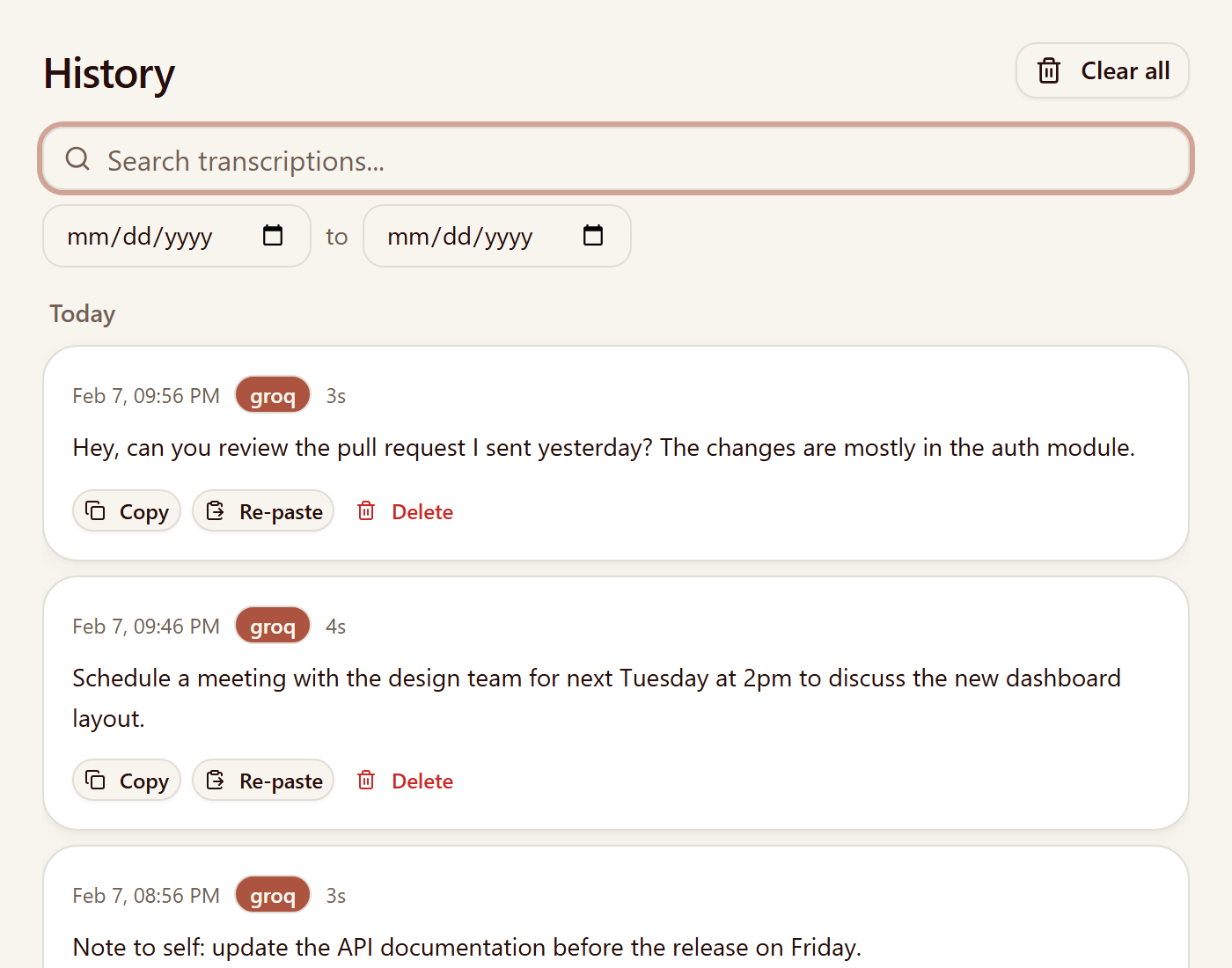
Features
- Search — Full-text search across all transcriptions
- Date filtering — Filter by date range to find older transcriptions
- Favorites — Star important transcriptions for quick access
- Copy — Copy any transcription back to your clipboard
- Re-paste — Paste a previous transcription into your active app
- Delete — Remove individual transcriptions or clear all history
- Save as Prompt — Turn a transcription into a reusable saved prompt
%AppData%/yeet-prompt/history.db. You can back it up or delete it at any time.Saved Prompts
Saved prompts let you create reusable text templates that you can quickly fill and paste.
Creating a Prompt
Open the History window and click "Saved Prompts". Click "New Prompt" and give it a name and content.
Template Variables
Use the $tag name$ syntax to create fillable fields in your prompts. For example:
When you use this prompt, Yeet Prompt will show a form where you fill in each variable before pasting.
Using a Prompt
- Open the Saved Prompts panel
- Click a prompt to use it
- Fill in any template variables
- Click "Copy" or "Paste" to use the filled prompt
Troubleshooting
Microphone Not Working
Symptom: Recording starts but no audio is captured.
- Check Windows privacy settings: Settings → Privacy → Microphone → ensure "Allow apps to access your microphone" is on
- Verify the correct input device is selected in Yeet Prompt's Audio settings
- Test your mic in another app to confirm it works
Invalid API Key
Symptom: Cloud transcription fails with an authentication error.
- Double-check your Groq API key in Settings → General
- Make sure you copied the full key (starts with
gsk_) - Generate a new key at console.groq.com/keys if needed
Rate Limiting
Symptom: Cloud transcription fails intermittently with rate limit errors.
- Groq's free tier has usage limits. Yeet Prompt automatically retries with exponential backoff
- If you hit limits frequently, wait a minute and try again
- Switch to "Auto" backend mode to fall back to local transcription when rate-limited
Hotkey Not Working
Symptom: Pressing the hotkey does nothing.
- Make sure Yeet Prompt is running (check the system tray)
- Some apps running with admin privileges can intercept hotkeys — try running Yeet Prompt as administrator
- Try a different hotkey in Settings → General
- The hotkey system requires the
uiohook-napinative module — if it failed to load, hotkeys are disabled
Paste Not Working
Symptom: Transcription succeeds but text doesn't appear in your app.
- Some apps block automated paste — try "Clipboard only" mode and paste manually
- Increase the clipboard restore delay in settings
- Make sure the target app is focused when transcription completes
Local Transcription Unavailable
Symptom: Local mode shows "whisper.cpp not found".
- Download the whisper.cpp binary (
main.exe) and model file (ggml-base.en.bin) - Place them in the app's
assets/whisper/directory - The setup wizard can guide you through this process
No Speech Detected
Symptom: Recording completes but returns empty or "no speech" result.
- Speak clearly and at a normal volume
- Check that the min recording duration isn't too long (default 0.5s)
- Reduce background noise or move closer to your microphone
- Make sure the correct mic is selected in Audio settings
App Crashes
Symptom: Yeet Prompt closes unexpectedly.
- Check the log file at
%AppData%/yeet-prompt/logs/ - Try deleting the settings file at
%AppData%/yeet-prompt/config.jsonto reset to defaults - Open a GitHub issue with your OS version and steps to reproduce
FAQ
Is Yeet Prompt free?
Yeet Prompt is a one-time purchase of $1.99. No subscriptions, no recurring fees. You get all current features and all future updates.
Do I need an internet connection?
For cloud transcription (Groq), yes. For local transcription (whisper.cpp), no — it works completely offline. In Auto mode, the app tries cloud first and falls back to local if there's no connection.
Is the Groq API key really free?
Yes. Groq offers a generous free tier that's more than enough for regular use. You can sign up at console.groq.com without a credit card.
What languages are supported?
Cloud mode (Groq Whisper) supports 10+ languages including English, Spanish, French, German, Portuguese, Italian, Dutch, Japanese, Chinese, and Korean. Local mode with the default model is English-only.
Where is my data stored?
All data is stored locally on your computer in %AppData%/yeet-prompt/. Settings, transcription history, and preferences never leave your machine. In cloud mode, audio is sent to Groq for processing but is not stored by them.
Does it work with any app?
Yeet Prompt pastes into whatever app is focused when transcription completes. It works with most text fields including browsers, code editors, chat apps, email clients, and word processors. A few apps with custom input handling may require "Clipboard only" mode.
Can I change the hotkey?
Yes. Go to Settings → General → Hotkey and click to reassign. You can use any key or key combination.
How accurate is the transcription?
Cloud transcription (Groq Whisper) is very accurate for clear speech. Accuracy depends on audio quality, background noise, and speaking clarity. Local transcription is slightly less accurate but still very usable for everyday dictation.
Can I get a refund?
Yes. We offer a 14-day money-back guarantee. See our refund policy for details.
Is it open source?
Yeet Prompt is not open source, but it incorporates open-source components including whisper.cpp (MIT license) and Electron. Bug reports and feature requests are welcome on GitHub.